Viva Voce speech recognition solutions
  • Home
  • Clickless Software
    • ClickAway Clickless Software
  • Speech Recognition
    • Dragon user training >
      • General information on Dragon user training
      • ONLINE GROUP TRAINING
      • E-LEARNING 1: Installation and setup
      • E-LEARNING 2: Using Dragon
    • Microphones >
      • Choosing a suitable microphone
      • Microphone FAQs
    • Dragon software >
      • Information on Dragon software
      • What to expect from Dragon software
    • Technical Support
  • About Us
  • Contact
  • Information
    • Testimonials
    • General >
      • General product information & FAQs
      • Useful links
      • Ergonomics >
        • Tips for working smarter
        • Tips for managing computer related occupational overuse syndrome
      • Information for OHS Case Managers & Rehabilitation Providers
      • Resources for Viva Voce customers
      • Resources for Viva Voce trainers
    • Dragon for Windows >
      • Installation and setup
      • Set-up checklist
      • System requirements / Computer specs
      • General tips for using Dragon for Windows
      • Using Dragon in Excel
      • Capitalising by voice
      • Technical FAQs
      • TROUBLESHOOTING
      • Creating macros
      • how to preserve your dragon customisations
    • Transcribing recorded speech >
      • General information on transcription
      • Recording speech using apps
      • Use Dragon NaturallySpeaking to transcribe recorded speech
  • Blog
  • Newsletter

Commands to control the microphone

3/15/2022

0 Comments

 
Many Dragon users experience difficulty with recognition of the microphone commands. To improve recognition, try adding a micro pause between each word. We have a tendency to run words together in a short phrase, and this can make it difficult for dragon to detect each separate word.
However don't pause too long between each word, because this can break the phrase up, and Dragon might not hear it as a command.
As with all commands, it is important to pause before and after.
  • "Wake_up"
  • "Listen_TO_me"
  • "Go_TO_sleep"
  • "Stop_listening"
In addition, emphasising the word TO in "Listen TO me" and "Go TO sleep" seems to improve recognition of the phrase.
0 Comments

How to export Dragon customisations

3/15/2022

0 Comments

 
It's a good idea to export your Dragon customisations on a regular basis, in case anything happens to your computer or your Dragon user profile becomes corrupt. Or you might need to transfer your user profile to another computer. Click here for advice and instructions.
0 Comments

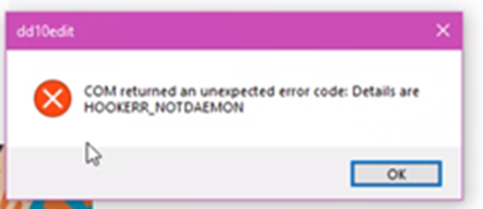
Error message 'COM returned an unexpected error code: Details are HOOKERR_NOTDAEMON'

3/14/2022

0 Comments

 
If you experience this error message (see image below)…
the solution is to delete dragon's desktop shortcut and create a new one from the Dragon exe file which can be found at: C:\Program Files (x86)\Nuance\NaturallySpeaking15\Program\natspeak.exe
Picture
0 Comments

How to open a web page by voice (3 ways)

2/25/2022

0 Comments

 
Method 1: via favourites on the Favourites Bar
Create a favourite / bookmark on the Favourites Bar by opening a webpage, then use keyboard shortcut CTRL+D (by voice "Press control D).
Choose names for your favourites that are easy to pronounce, and easy for Dragon to recognise. By keeping the name short you will be able to fit more in. Favourites can be opened by a single voice command. Say "Click <Favourite>", or simply "Favourite". For example, "Click Google search", or "Google search" (assuming you have such a favourite).
Favourites can be grouped in folders if you have a lot, but accessing them will require more than one voice command.
If the Favourites Bar is not in view, use the keyboard shortcut CTRL+SHIFT+B (by voice "Press control SHIFT B").
You can also access your 'Other Favourites' (what used to be called the Favourites Menu) by voice. However I prefer saving my favourites on Bar because they can be accessed by a single voice command.
To access all favourites say:  "Press control shift O".
If you are not able to access favourites on the Favourites Bar by voice, check:
  • that your favourite is on the Favourites Bar and has not been saved to a different location, perhaps in Other Favourites
  • that you are correctly verbalising the name of the shortcut , exactly as it is
  • whether the Dragon web extension has been installed in your web browser (see post below)
Method 2:  Create shortcuts to web pages on your desktop:
  1. First create a folder in File/Windows Explorer called ‘Web Links’. It doesn’t matter where the folder is. Create a desktop shortcut to the folder, and rename so it is called just ‘Web Links’ and not ‘Web Links-shortcut’. Note that renaming the desktop shortcut won’t affect the original folder.
  2. Open the Web Links folder & split the screen using the shortcut Windows key + left or right arrow (by voice “Press Windows left / right”).
  3. Open your web browser and go to a webpage. Split the screen so you can view both the web browser and your Web Links folder.
  4. At the left of the address bar you will see a padlock. Drag the padlock into your Web Links folder.
You will now be able to say “Open Web Links” (because Dragon can open anything on your desktop), and navigate your links the same as you would in a Windows/File Explorer folder. Simply say the name of the link, for example “Google search”, then “Press enter” to open.
Links can be renamed to suit, and can be grouped in folders.

Picture
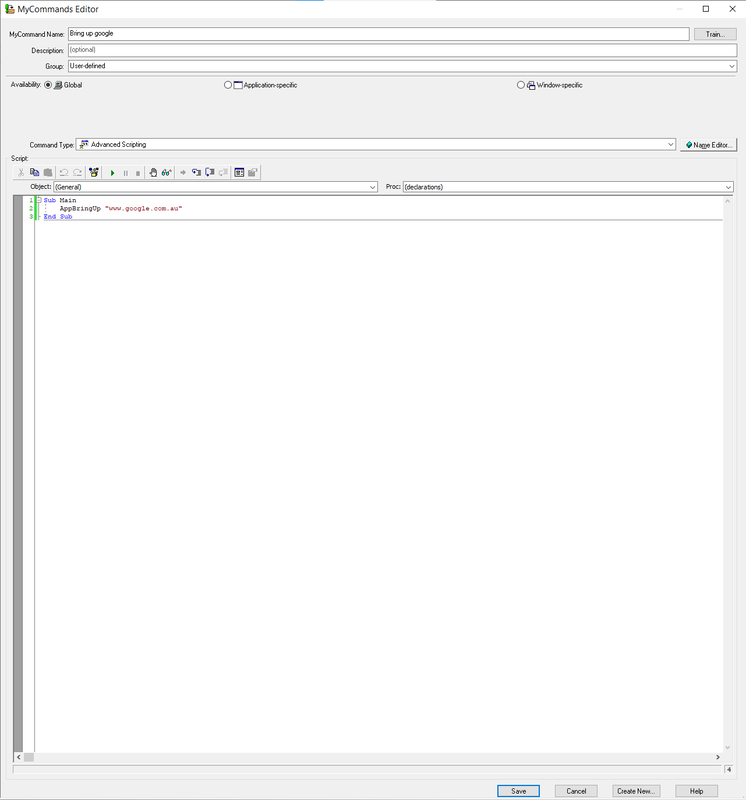
Method 3: for macro writers — create an AppBringUp macro
These instructions assume that you have some familiarity with creating custom commands/macros, but even if you don't, feel free to have a go.
  1. Copy the script in the line below
    AppBringUp "www.google.com.au"
  2. Say "Add new command"
  3. Give your macro a name e.g. "Bring up Google search"
  4. Change the Command type to Advanced Scripting by saying "Command type", then "Move down 3"
  5. Say "Script" to move the mouse pointer between Sub Main & End Sub
  6. Say "Paste that"
  7. Say "click save"
Now give your macro a try by saying "Bring up Google search". The webpage should open in your default browser. This macro will work even if you are not in the browser.
To create macros for other webpages, simply replace the URL between the quotes.
How to find a macro in Command Browser
You might need to find your macro in Command Browser to edit it, or to copy & rename it (to recreate the macro for other webpages):
1.    “Open Command Browser”
2.    “Show Task pane” (if it is collapsed)
3.    “Manage”
4.    “Global commands”
5.    “Move right” (to expand the folder)
6.    Say the first 1 or 2 words of the command name, eg "Bring up", or “press B /Bravo" to jump to the macros starting with that letter. Avoid saying the full name of your macro because rather than finding it in the list, Dragon might try to action the macro.
7.    Select the macro with a single click
8.    “To script”
9.    “Edit” or “New copy” (depending on what you are trying to do). If copying the macro, rename it and replace the URL between the quotes
10.    “Click save”
Your macro will look like this:
Picture
0 Comments

Dragon web extensions for web browsers

2/25/2022

0 Comments

 
For enhanced functionality in web browsers (including Microsoft Edge, Google Chrome & Mozilla Firefox), it's important to load the Dragon web extensions.
Click here for more information.
0 Comments

Service pack for Dragon 15

4/29/2018

0 Comments

 
A service pack has been released for Dragon 15. Click here for download.
Release Notes
Before loading this service pack, we strongly recommend that you export a copy of your Dragon user profile in case anything goes wrong during the update.
Instructions on how to export a copy of your Dragon User Profile (see section 1.1). 
0 Comments

Risk of sending emails prematurely

4/9/2017

0 Comments

 
​When using Dragon to dictate in an email, there is a risk that the email will be sent before you have finished, if you inadvertently say the word 'send' on its own.

Here are some suggested workarounds to avoid this happening:
  • Avoid using the word 'send' on its own when dictating in an email. If you use the word in a stream of text, for example 'would you please send a copy of the document', Dragon should recognise that as text, rather than a command, because you haven't paused before the word 'send'.
  • Another option is to not address your email until you have finished the text. Your email can't be sent prematurely if there is nothing in the 'To' field.
  • You could also dictate your email text in the dictation box. Say "Show dictation box" then dictate your message in the box that appears, then say "Transfer", and the text will be pasted wherever the cursor was. This is another way of ensuring that your email isn't sent before you have finished dictating the text in the body field.
0 Comments

Hyphens and dashes

3/10/2017

0 Comments

 
Saying "hyphen" will produce -
Saying "en dash" will produce – (often used between numbers for example 2016–2017)
Saying "em dash" will produce — 
When to use an em dash

​
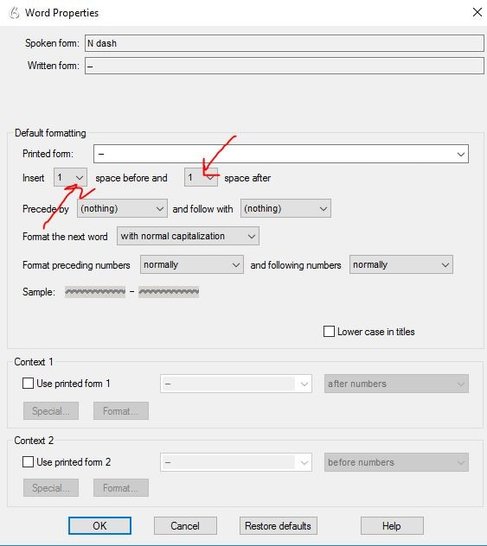
To change the properties of these vocabulary items, eg if you don't want any spaces before and after the en dash:
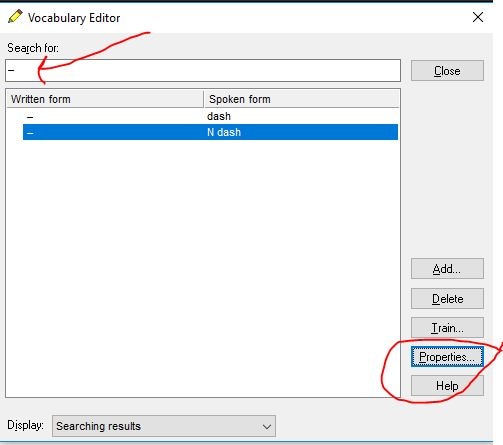
  1. Say Edit vocabulary"
  2. Type an en dash in the Search for field
  3. Click or say "Properties"
  4. Change spaces before and after the dash to 0 if that is your preference
  5. Clik or say "OK"​
Picture
Picture
0 Comments

Dragon workbooks

3/9/2017

1 Comment

 
For more information on Dragon, the workbooks are a good place to start…

Dragon 15 workbook
Dragon 14 workbook
Dragon 13 workbook
1 Comment

Recognition of "Wake up"

3/9/2017

1 Comment

 
​If you are experiencing difficulty with recognition of "Wake up", avoid running the words together and insert a micro pause between each word. However don't pause too much between each word — although Dragon needs to hear each word separately, it needs to hear the phrase as a unit, without a long pause between each word. 

As an alternative, you could try "Listen to me". If you stress the word 'to', this tends to force pronunciation of each word separately, rather than running the words together.

These phrases are often misrecognised by Dragon if the words are run together. 
1 Comment
<<Previous
Forward>>

    Author

    Sue Woodward is a Dragon user & trainer.

    Archives

    November 2022
    August 2022
    July 2022
    May 2022
    April 2022
    March 2022
    February 2022
    April 2018
    April 2017
    March 2017
    September 2016
    June 2016
    April 2016
    March 2016
    February 2016
    November 2015
    October 2015

    Categories

    All

    RSS Feed

Proudly powered by Weebly
  • Home
  • Clickless Software
    • ClickAway Clickless Software
  • Speech Recognition
    • Dragon user training >
      • General information on Dragon user training
      • ONLINE GROUP TRAINING
      • E-LEARNING 1: Installation and setup
      • E-LEARNING 2: Using Dragon
    • Microphones >
      • Choosing a suitable microphone
      • Microphone FAQs
    • Dragon software >
      • Information on Dragon software
      • What to expect from Dragon software
    • Technical Support
  • About Us
  • Contact
  • Information
    • Testimonials
    • General >
      • General product information & FAQs
      • Useful links
      • Ergonomics >
        • Tips for working smarter
        • Tips for managing computer related occupational overuse syndrome
      • Information for OHS Case Managers & Rehabilitation Providers
      • Resources for Viva Voce customers
      • Resources for Viva Voce trainers
    • Dragon for Windows >
      • Installation and setup
      • Set-up checklist
      • System requirements / Computer specs
      • General tips for using Dragon for Windows
      • Using Dragon in Excel
      • Capitalising by voice
      • Technical FAQs
      • TROUBLESHOOTING
      • Creating macros
      • how to preserve your dragon customisations
    • Transcribing recorded speech >
      • General information on transcription
      • Recording speech using apps
      • Use Dragon NaturallySpeaking to transcribe recorded speech
  • Blog
  • Newsletter